
Control sellable windows
Set how close to expiration you are willing to ship, using Less Than or Greater Than in Sellable Days before Expiration (relative to each bin’s expiration date).
Shelf Life lets you define how many days before a product’s expiration date it may still be sold, per sales channel or globally. The warehouse uses those rules together with expiration dates on bins when allocating stock. Orders from a store can be held back when no bin inventory matches the rule, until you adjust stock or use a supported processing override.
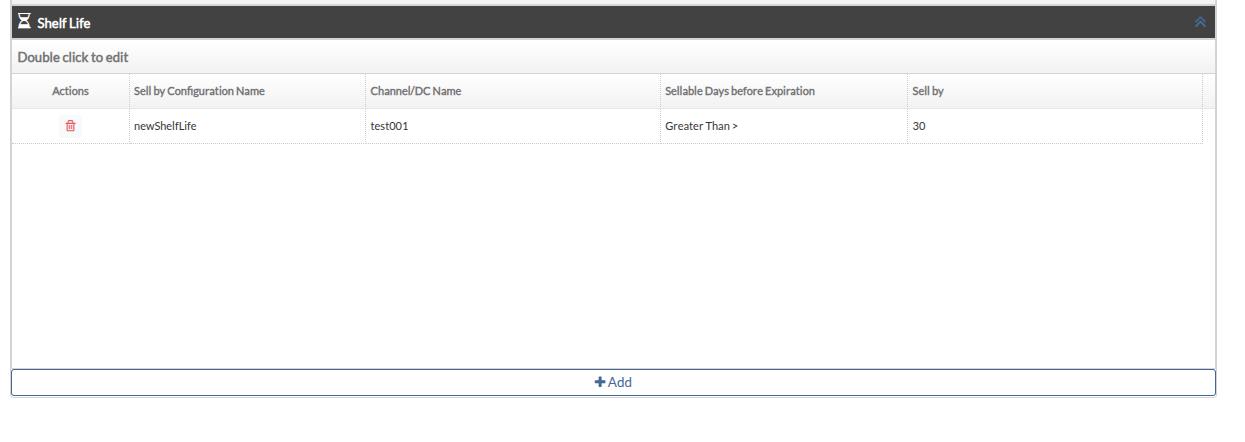
Rules are edited on the product page in the Shelf Life accordion. The grid uses the table title Double click to edit.
Open the product
From the catalog, open the product you want to configure.
Open the Shelf Life section
In the accordion, click Shelf Life. The table loads existing rules for that SKU.
Add a new rule
Click Add (the button shows a plus icon). A new row appears with default values. Edit cells, then use Save Record (save icon) or Cancel (remove icon) on the row.
Edit an existing rule
Double-click the row when the module is active. Set:
Save or delete
Click Save Record to send changes. To remove a rule, use the trash control on the row (tooltip Delete). A dialog asks Are you sure you want to proceed with deleting the Shelf Life? Choose Yes or Cancel.
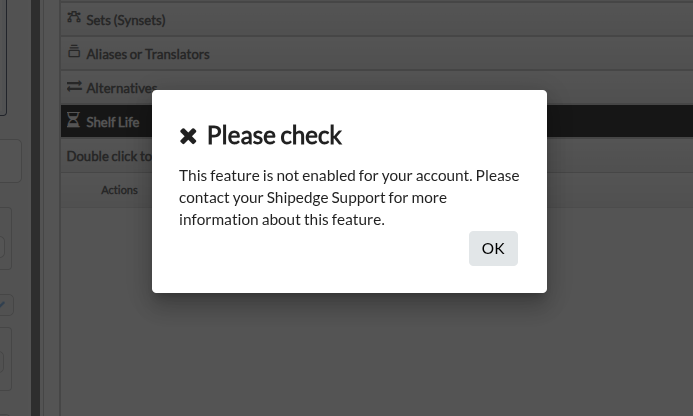
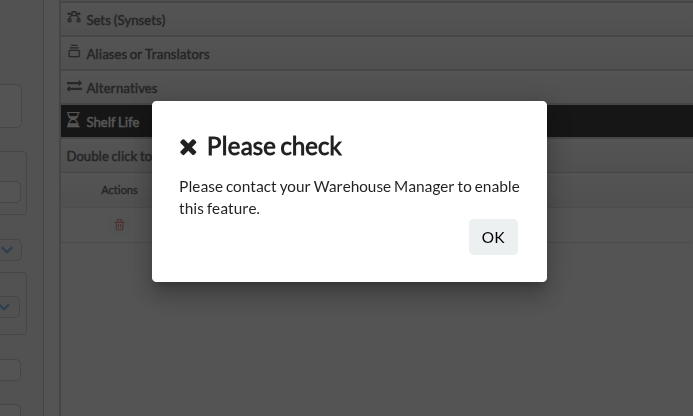
When validation succeeds, the product screen treats the module as active (success message: Shelf life module is activated for this account). If the module is off, double-click or Add can show a Please check dialog with the message above.
From Integrations List, open the row actions for a store and choose Upload Shelf Life Config by CSV when the Shelf Life module and premium service are on.
Open the upload dialog
The modal title is Upload Shelf Life CSV.
Download the template
Click the link ShelfLife_template.csv to download the file.
Choose your file
Use Choose a File CSV to select your CSV (required).
Optional: update existing rows
Enable Update/Replace ShelfLife that are already created for the SKUs. if you need to overwrite rules that already exist for the same SKU on that channel. If this is off, an existing rule for the same SKU and channel returns an error instead of updating.
Upload
Click Upload. The button can show Uploading… while the file is sent. Use Close to dismiss without uploading.
Review results
On success, a message appears at the bottom of the modal. If some rows failed, use Download observations to get a file with per-row details.
The template header row is:
shelf_life_name, sku, sellable_days, days
| Column | Description |
|---|---|
shelf_life_name | Name of the rule (allowed characters per server checks). |
sku | Must match an existing product SKU for the account. |
sellable_days | Must be less_than or greater_than (these map to Less Than / Greater Than in the product grid). |
days | Integer from 1 to 999. |
If the same sku appears more than once in one file, only the first row is processed; duplicate lines are reported with an observation that only the first occurrence is processed.
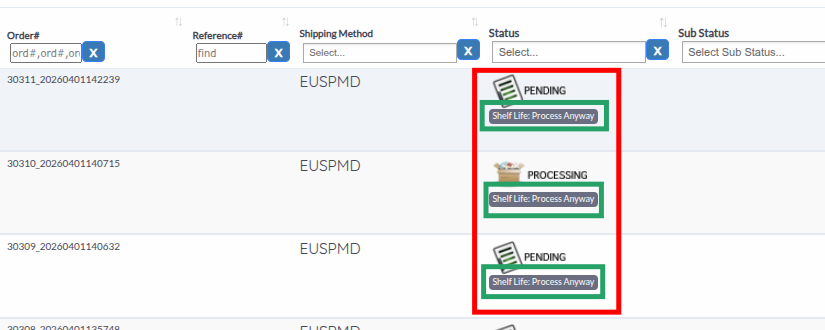
On Orders, when Shelf Life is enabled at the warehouse level, the status column can show a secondary badge:
Shelf Life: Process Anyway
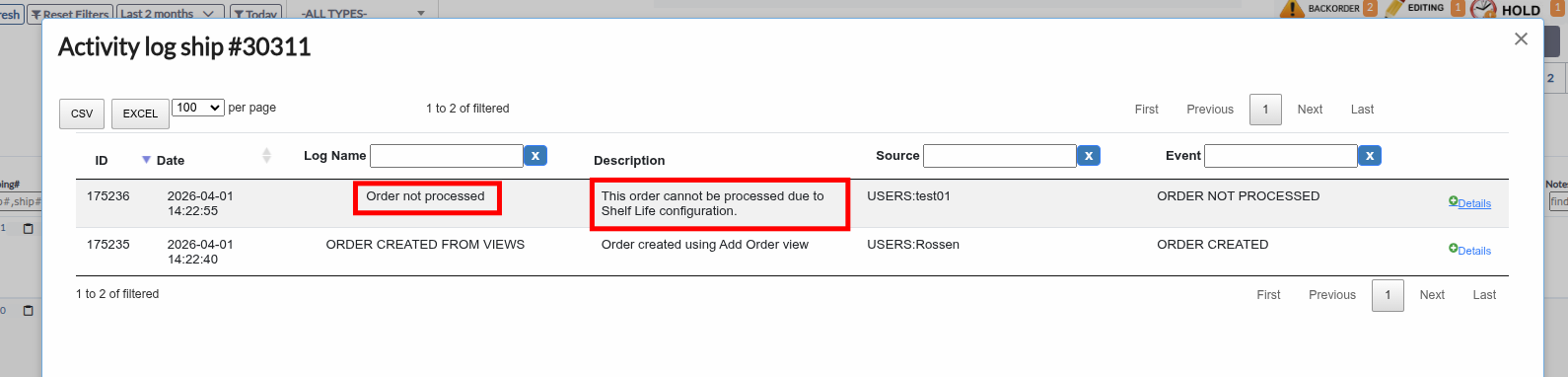
That indicates the order was flagged because available bin stock did not satisfy the Shelf Life window. The activity log can record event Order not processed with description This order cannot be processed due to Shelf Life configuration.
Open Reports view the page title in the header is Reports. Use the Advanced tab. When the Shelf Life module is active for your session data, the Shelf Life report card appears; if the module is off, that card is not listed.
Report description in the system:
The generated CSV uses columns such as SKU, Location, BIN, Lot, Expiration Date, Sell by Name, and Days Left. If UOM is enabled for the warehouse, a UOM column is included. Rows are filtered by bin expiration date within the report’s date range.
Set how close to expiration you are willing to ship, using Less Than or Greater Than in Sellable Days before Expiration (relative to each bin’s expiration date).
Pick a Channel/DC Name in the grid, or Global when the rule applies to all channels for that SKU.
Use Upload Shelf Life Config by CSV on the Integrations list to load or update many SKUs at once.
Receiving and cycle counting should set expiration on bins so Shelf Life rules match physical stock.
Configure rules for the same store / channel the order uses, or Global where appropriate.
| Issue | What to check |
|---|---|
| Shelf Life panel is read-only or a Please check alert appears | Read the message text (warehouse module off vs contact Warehouse Manager). |
| CSV upload errors | Use less_than / greater_than for sellable_days; ensure SKUs exist; days between 1 and 999; enable Update/Replace ShelfLife… only when you intend to overwrite existing rules. |
| Duplicate SKU lines in one CSV | Only the first row per SKU is processed; check the observations file for Duplicate SKU .Only the first occurrence will be processed. |
| Report missing | On Reports, open the Advanced tab; the Shelf Life card is shown only when the Shelf Life module flag is on. |
Next steps: Catalog Overview · Creating Products · Integrations Overview · Reports Overview · Orders Overview